> ## Documentation Index
> Fetch the complete documentation index at: https://docs.commerce.blazity.com/llms.txt
> Use this file to discover all available pages before exploring further.
# Providers
> Guide to setting up necessary providers and obtaining their API keys.
In today's world utilizing third-party providers is essential for building a robust e-commerce platform.
These providers can significantly reduce overhead and eliminate the need for redundant development efforts. Below, you will find a list of providers that integrate seamlessly with our system, enabling you to get started quickly while we keep adding more options.
Depending on the [starter](/starters) you choose, you will need to obtain different keys.
***
## Commerce Platform
### Shopify
Shopify is a leading e-commerce platform that allows you to create and manage your online store with ease.
**Keys to obtain:**
```
SHOPIFY_STORE_DOMAIN
SHOPIFY_STOREFRONT_ACCESS_TOKEN
SHOPIFY_ADMIN_ACCESS_TOKEN
SHOPIFY_APP_API_SECRET_KEY
```
#### 1. Shopify Store Domain
* **Variable Required:** `SHOPIFY_STORE_DOMAIN`
* **How to Obtain:**
* Your Shopify store domain is the URL of your Shopify store. You can obtain it in shopify dashboard, it should be without `https` and `/` at the end of the string. Example: `cool-socks.myshopify.com`
#### 2. Headless App
* **Variable Required:** `SHOPIFY_STOREFRONT_ACCESS_TOKEN`
* **Installation and Configuration:**
1. Visit the Shopify Marketplace and search for the Headless commerce application or navigate directly to [https://apps.shopify.com/headless](https://apps.shopify.com/headless).
2. Install the application, open it, and create a new Storefront within the app.
3. In the "Manage API Access" section, click on the `Manage` button next to **Storefront API**.
4. Make sure you have enabled `unauthenticated_read_product_inventory` and `unauthenticated_read_customer_tags` scopes
5. Copy the **Private access token** displayed and place it in your `.env` file under `SHOPIFY_STOREFRONT_ACCESS_TOKEN`.
#### 3. Private Admin App
* **Variables Required:** `SHOPIFY_ADMIN_ACCESS_TOKEN`, `SHOPIFY_APP_API_SECRET_KEY`
* **Application Setup and Scopes Configuration:**
1. Go to the Shopify admin dashboard, navigate to Settings > `Apps and sales channels` > `Develop Apps`, and click on `Create app`.
2. After naming and creating your app, move to the `Configuration` tab.
3. In the "Admin API access scopes" section, click `Edit` and select the following scopes:
* `write_product_listings`
* `read_product_listings`
* `read_products`
* `write_products`
4. Under **Webhook subscriptions**, choose the `2024-01` API version.
5. Lastly, navigate to the `API Credentials` section.
* Copy the **Admin API access token** and place it in your `.env.local` file under `SHOPIFY_ADMIN_ACCESS_TOKEN`
* Also, copy the `API secret key` and place it in your `.env.local` file under `SHOPIFY_APP_API_SECRET_KEY`
***
## Search & Merch
### Algolia
Algolia is a SaaS platform that provides fast, customizable, and scalable search capabilities.
**Keys to obtain:**
```
ALGOLIA_APP_ID
ALGOLIA_WRITE_API_KEY
ALGOLIA_PRODUCTS_INDEX
ALGOLIA_CATEGORIES_INDEX
ALGOLIA_REVIEWS_INDEX - only if you're using reviews feature
```
To get starter create an account and log in to the [admin dashboard](https://dashboard.algolia.com/)
* Go to your account settings and API Keys
* From here copy `Application ID`, `Write API Key`
* Now go to your search dashboard and create indicies for products, categories and reviews
* Copy those indicies name as well and
* Paste obtained keys to your `.env.local`
***
#### Indicies Setup
For your storefront to work properly there's necessary setup required:
Setup your `products` index attributes for faceting:
> * "hierarchicalCategories" only if you're planning on using this feature
> * "avgRating" only if you're using reviews feature
```
[
"collections.handle",
"collections.id",
"flatOptions.color",
"handle",
"minPrice",
"tags",
"variants.availableForSale",
"vendor",
"hierarchicalCategories.lvl0",
"hierarchicalCategories.lvl1",
"hierarchicalCategories.lvl2",
"avgRating"
]
```
And then your `categories` index attributes for faceting:
```
handle
```
Now to make your sorting work we need to create virtual replica for each of the sorting options, the formula is:
```
{indexName}_price_desc
{indexName}_price_asc
{indexName}_rating_desc
{indexName}_updated_asc
{indexName}_updated_desc
```
And for each replica:
* Configuration tab > Relevant Sort > minPrice/avgRating/updatedAtTimestamp - (ascending/descending)
### Meilisearch
Meilisearch is a powerful, fast, open-source search engine.
There are two main ways to host Meilisearch:
* on-premise (self-hosting on dedicated servers or cloud providers)
* using Meilisearch Cloud.
For the purposes of this guide, we will focus on the recommended approach, which is using Meilisearch Cloud.
**Keys to obtain:**
```
MEILISEARCH_PRODUCTS_INDEX
MEILISEARCH_CATEGORIES_INDEX
MEILISEARCH_ADMIN_KEY
MEILISEARCH_HOST
MEILISEARCH_REVIEWS_INDEX - only if you're using reviews feature
```
To get started with Meilisearch Cloud, navigate to the Meilisearch Cloud platform and [log in](https://cloud.meilisearch.com/).
* Create a new project within the platform.
* Create two indicies called `products` and `categories`. If you wish to use different names make sure your environment variables `MEILISEARCH_PRODUCTS_INDEX` and `MEILISEARCH_CATEGORIES_INDEX` are updated accordingly.
* After your project is set up, proceed to the "Settings" tab of your Meilisearch Cloud project.
* Locate and copy the `Default Admin API Key`. This key should be securely stored in your `.env.local` file under the `MEILISEARCH_ADMIN_KEY` variable.
* Copy the Meilisearch URL and place it in your `.env.local` file under `MEILISEARCH_HOST`. **Ensure you do not include a trailing slash at the end of the URL.**
* Set up your indicies
***
#### Indicies setup
The last thing, but also crucial for application to work correctly is setting your Meilisearch index the right way.
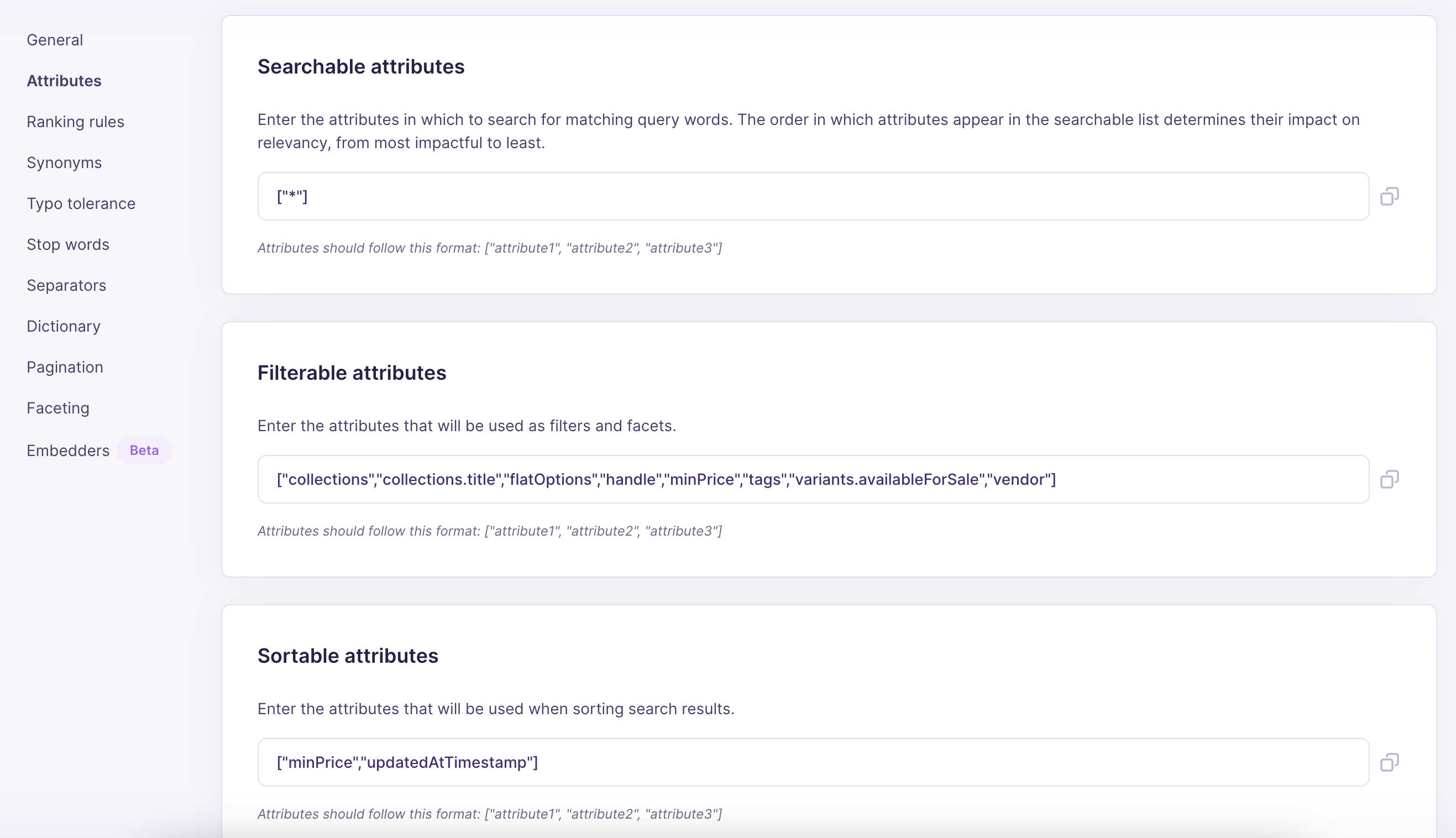 **Products index:**
Filterable attributes:
> * "hierarchicalCategories" only if you're planning on using this feature
> * "avgRating" only if you're using reviews feature
```
[
"collections",
"collections.handle",
"collections.id",
"flatOptions",
"handle",
"minPrice",
"tags",
"variants.availableForSale",
"vendor",
"hierarchicalCategories",
"hierarchicalCategories.lvl0",
"hierarchicalCategories.lvl1",
"hierarchicalCategories.lvl2",
"avgRating"
]
```
Sortable attributes:
> "avgRating" only if you're using reviews feature
```
[
"minPrice",
"updatedAtTimestamp",
"avgRating"
]
```
**Categories index:**
Filterable attributes:
```
[
"handle",
"id"
]
```
**Products index:**
Filterable attributes:
> * "hierarchicalCategories" only if you're planning on using this feature
> * "avgRating" only if you're using reviews feature
```
[
"collections",
"collections.handle",
"collections.id",
"flatOptions",
"handle",
"minPrice",
"tags",
"variants.availableForSale",
"vendor",
"hierarchicalCategories",
"hierarchicalCategories.lvl0",
"hierarchicalCategories.lvl1",
"hierarchicalCategories.lvl2",
"avgRating"
]
```
Sortable attributes:
> "avgRating" only if you're using reviews feature
```
[
"minPrice",
"updatedAtTimestamp",
"avgRating"
]
```
**Categories index:**
Filterable attributes:
```
[
"handle",
"id"
]
```