> ## Documentation Index
> Fetch the complete documentation index at: https://docs.commerce.blazity.com/llms.txt
> Use this file to discover all available pages before exploring further.
# Hierarchical Categories
> Narrow results for large subset of products
## Introduction
In an e-commerce shop with a vast array of products, helping users find what they need quickly and efficiently is crucial. Hierarchical categories provide a powerful way to organize and navigate large product inventories. By structuring products into parent and child categories, users can easily drill down from broad categories to more specific ones, refining their search and improving their overall shopping experience.
This feature allows users to filter and refine large product selections efficiently.
## High-level Overview
Implementation can be broken down into:
* Setting up categories
* Defining hierarchies
* Assigning products to categories
* Synchronizing with your search platform
* Retrieval of facets in the frontend
## Implementation overview
Defining categories and their hierarchical structure may vary depending on the platform, however we try to minimize the amount of work needed in order to get them working with your storefront.
Following the design of our architecture, we push all categories to our search platform whilst also enabling other benefits, ie. categories search.
***
Below describes steps for [Shopify](https://shopify.com) and [Meilisearch](https://meilisearch.com), more providers will be added later.
### Setting up categories
To set up categories in Shopify, log in to your [Shopify Admin Dashboard](https://admin.shopify.com/). From the left-side menu, select Products, then from the sub-menu that opens, select Collections. Here, you can manage your collections.
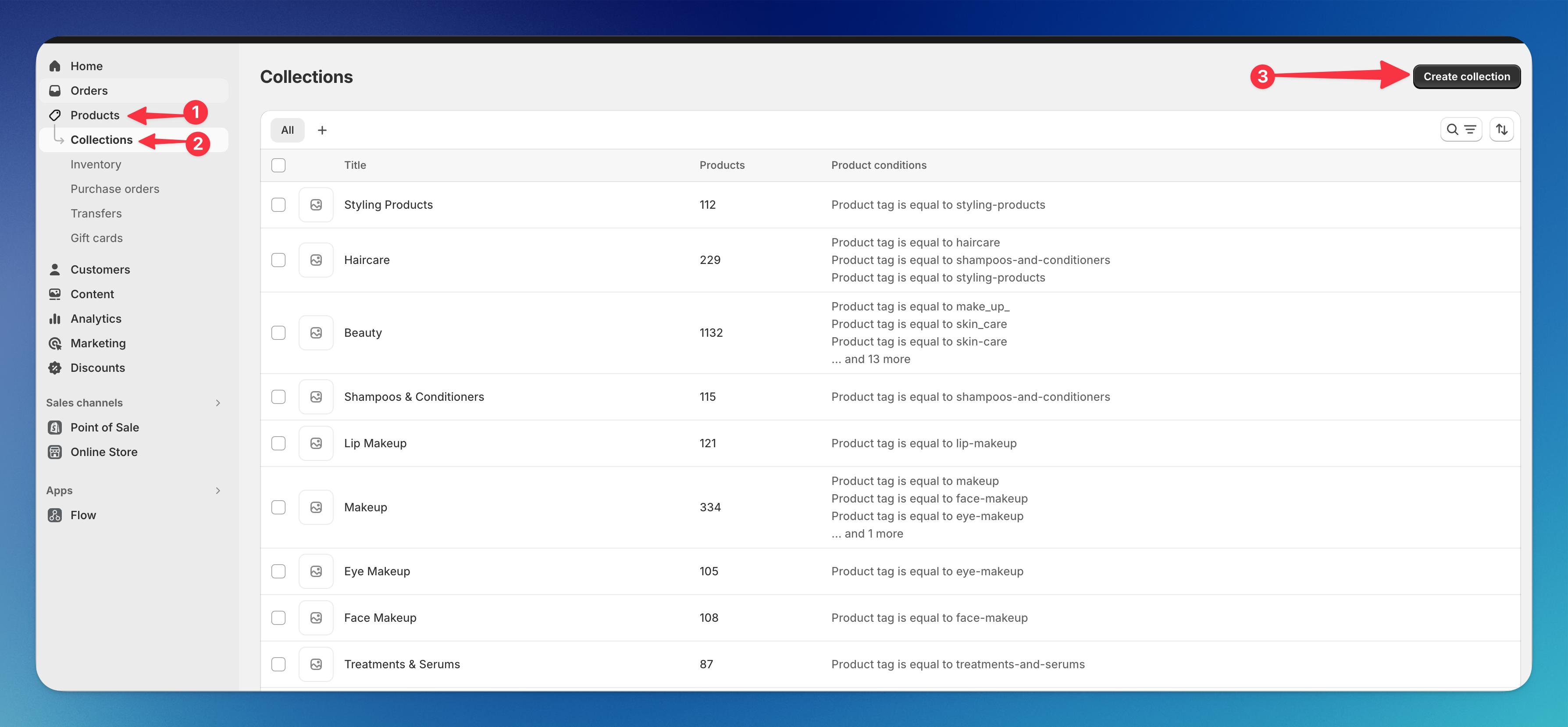 When you're creating a new category, Shopify offers two types:
* Manual: You manually curate products that belong to the given category.
* Automated: You create conditions upon which products will automatically be assigned to this category.
**Keep in mind, once you create a collection, you cannot change its type**
When you're creating a new category, Shopify offers two types:
* Manual: You manually curate products that belong to the given category.
* Automated: You create conditions upon which products will automatically be assigned to this category.
**Keep in mind, once you create a collection, you cannot change its type**
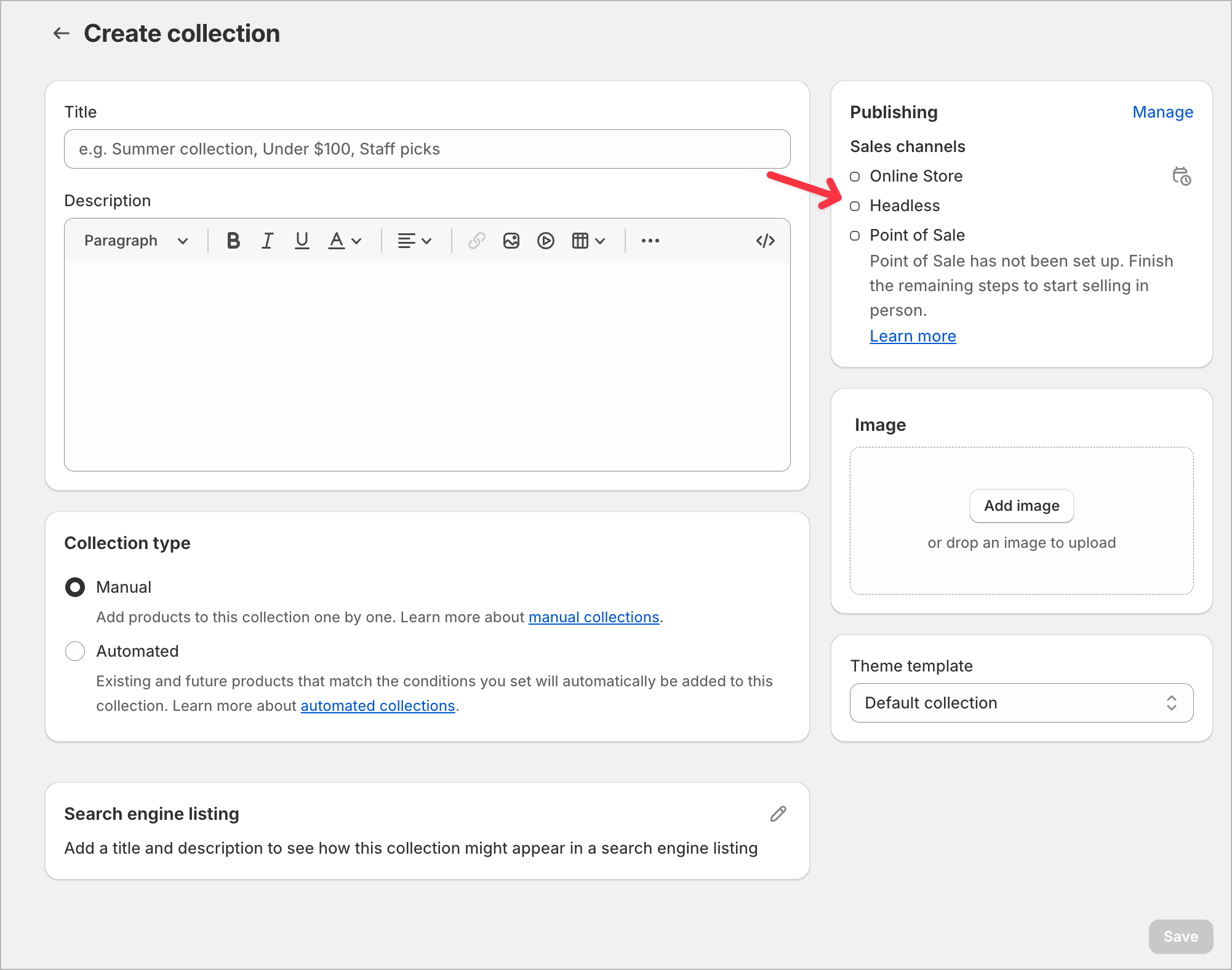 As you create a new category, make sure you publish it to the Headless Channel then fill in all of the fields. We recommend choosing automated categories. When creating your category, consider where it belongs in the hierarchy so you can set appropriate conditions.
For example:
Given the following structure, we want to create a top-level Fashion category.
```
- Fashion
- Men
- Shorts
- Blazers & suits
- Women
- Skirts
- Dresses
```
To simplify the process of product assignment, create a condition based on matching tags for each sub-category.
As you create a new category, make sure you publish it to the Headless Channel then fill in all of the fields. We recommend choosing automated categories. When creating your category, consider where it belongs in the hierarchy so you can set appropriate conditions.
For example:
Given the following structure, we want to create a top-level Fashion category.
```
- Fashion
- Men
- Shorts
- Blazers & suits
- Women
- Skirts
- Dresses
```
To simplify the process of product assignment, create a condition based on matching tags for each sub-category.
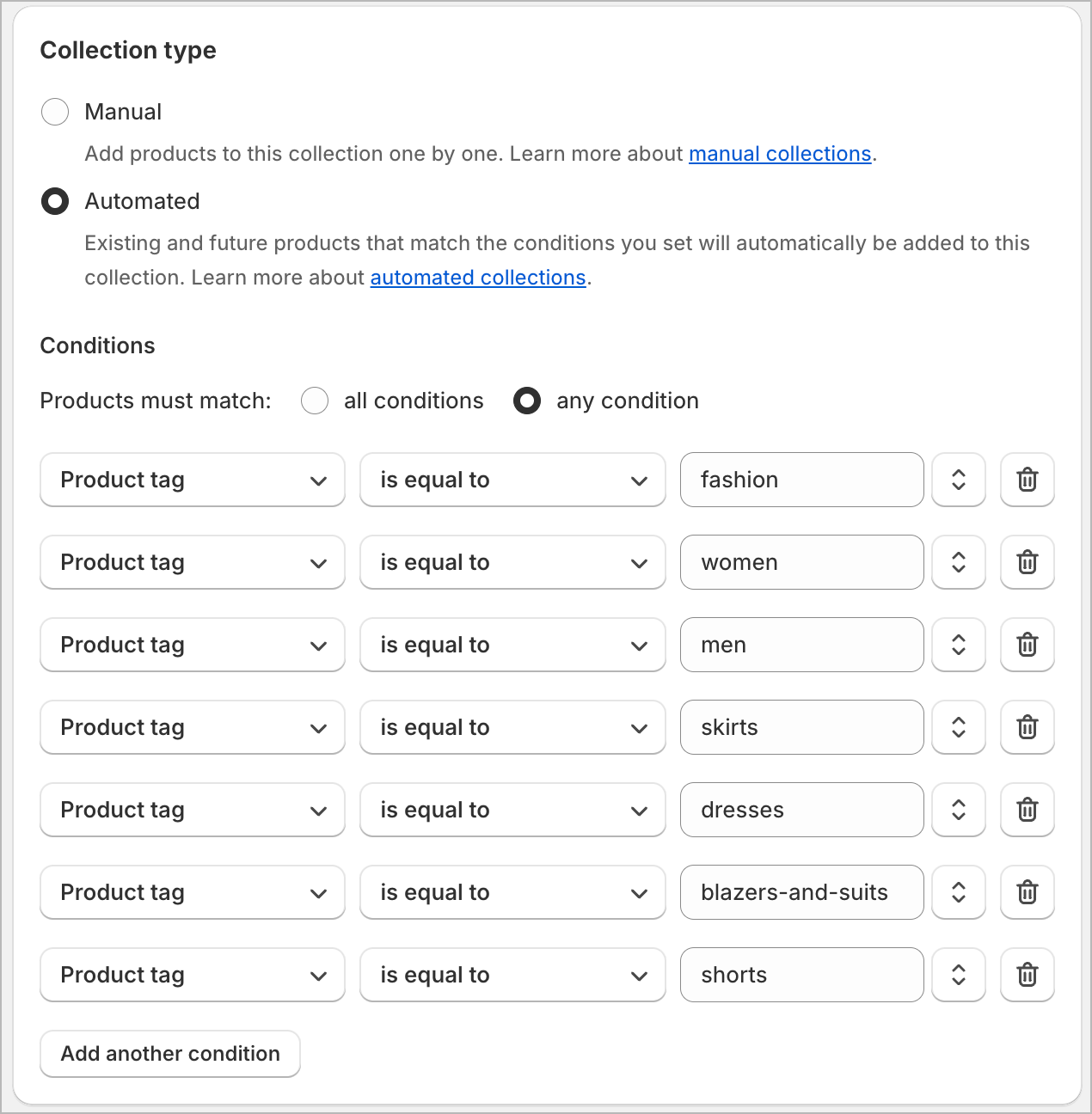 Now, looking at the above screenshot, all you have to do is to ensure that every time someone creates a new product, the proper tag is assigned to it.
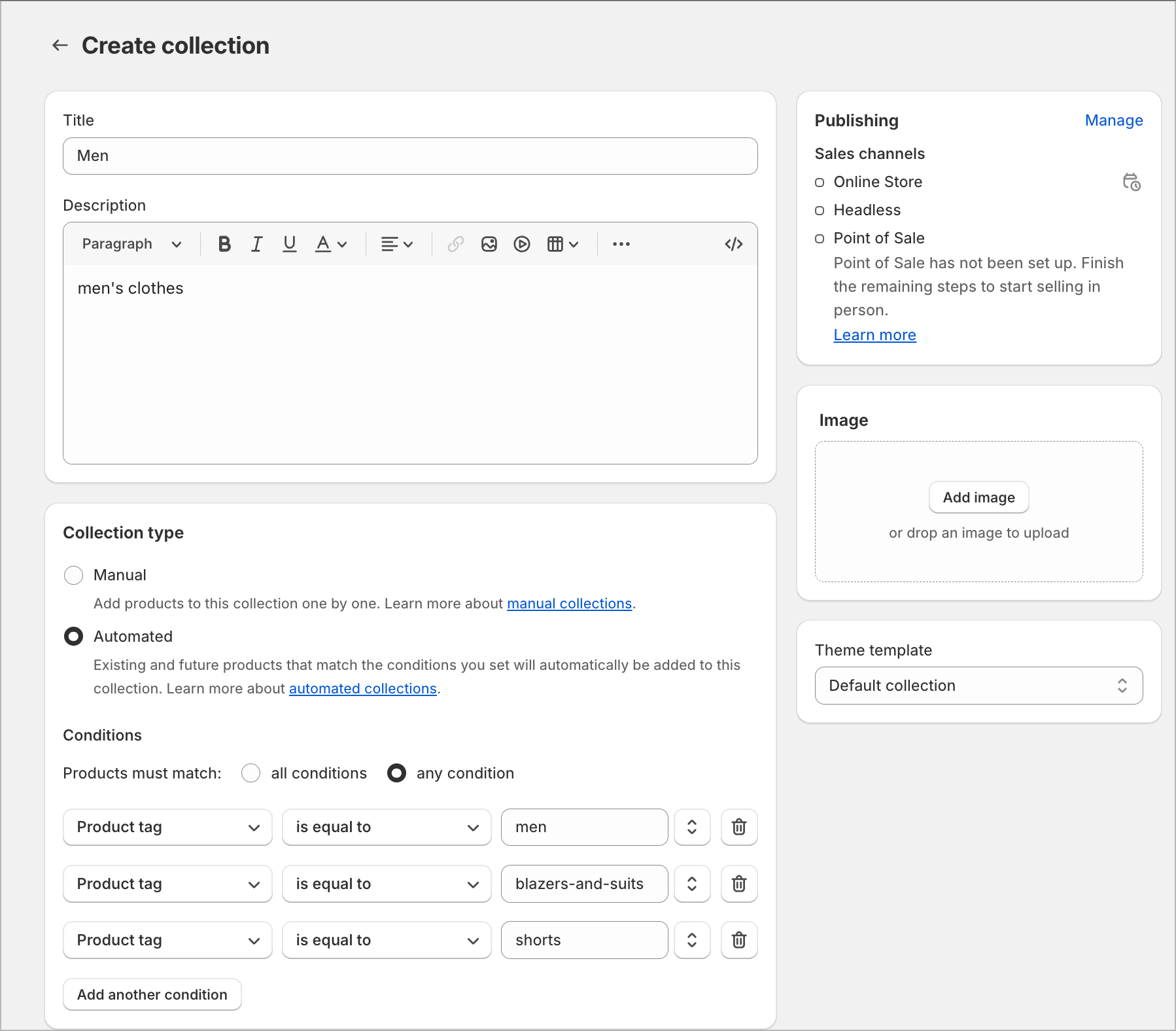
For sub-categories, create them following the same principle but with fewer conditions, as the whole point of hierarchies is to narrow down the results!
Now, looking at the above screenshot, all you have to do is to ensure that every time someone creates a new product, the proper tag is assigned to it.
For sub-categories, create them following the same principle but with fewer conditions, as the whole point of hierarchies is to narrow down the results!
 ### Defining Hierarchies
Defining hierarchies in Shopify can be tricky and may vary depending on the platform.
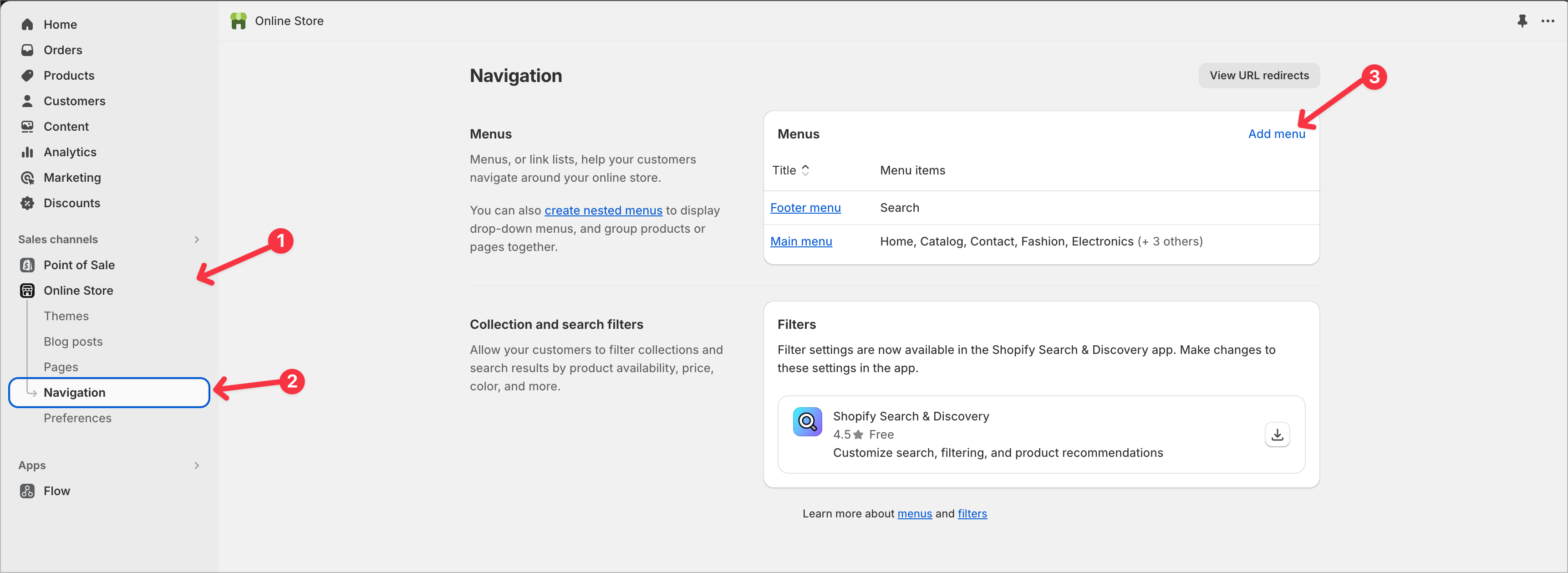
In Shopify, you can use the Navigation feature. From the left-side menu, select Online Store, then Navigation, and finally Add menu.
### Defining Hierarchies
Defining hierarchies in Shopify can be tricky and may vary depending on the platform.
In Shopify, you can use the Navigation feature. From the left-side menu, select Online Store, then Navigation, and finally Add menu.
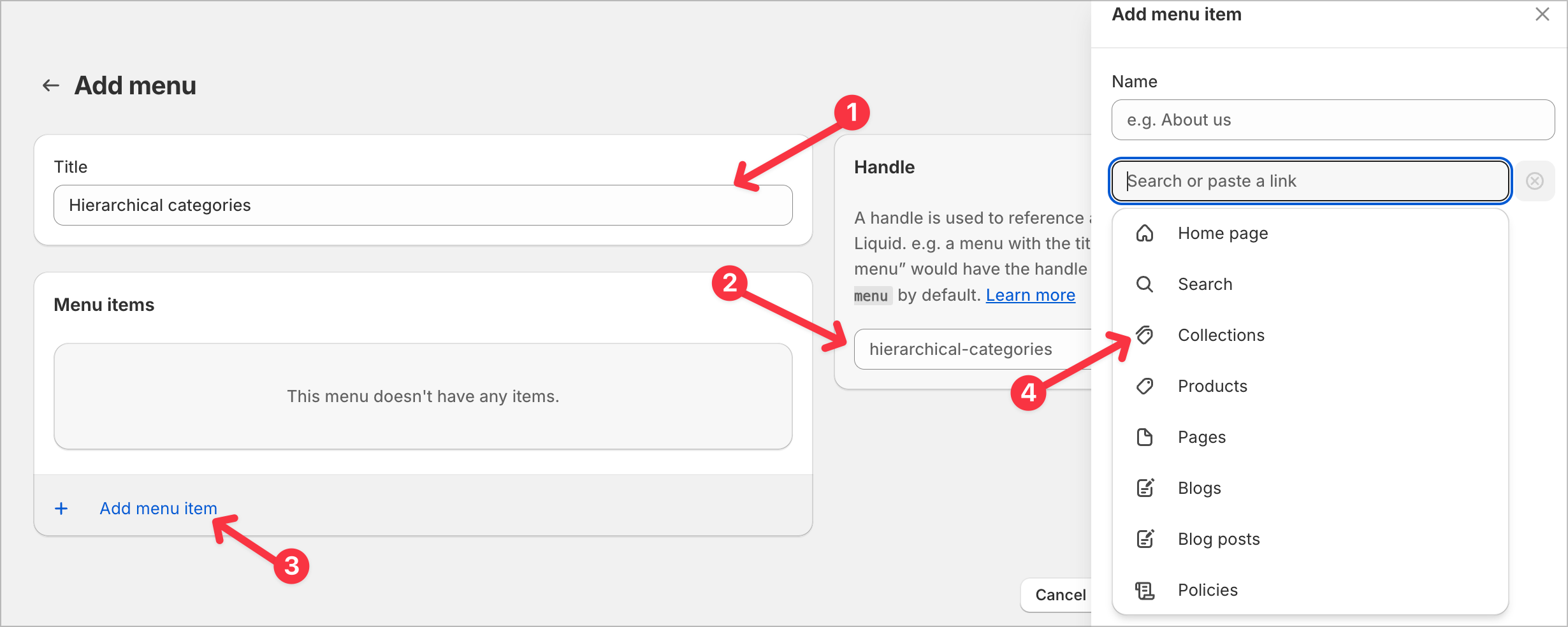
 Fill in all the fields, such as title and handle (this is very important), add menu items, and then define hierarchies.
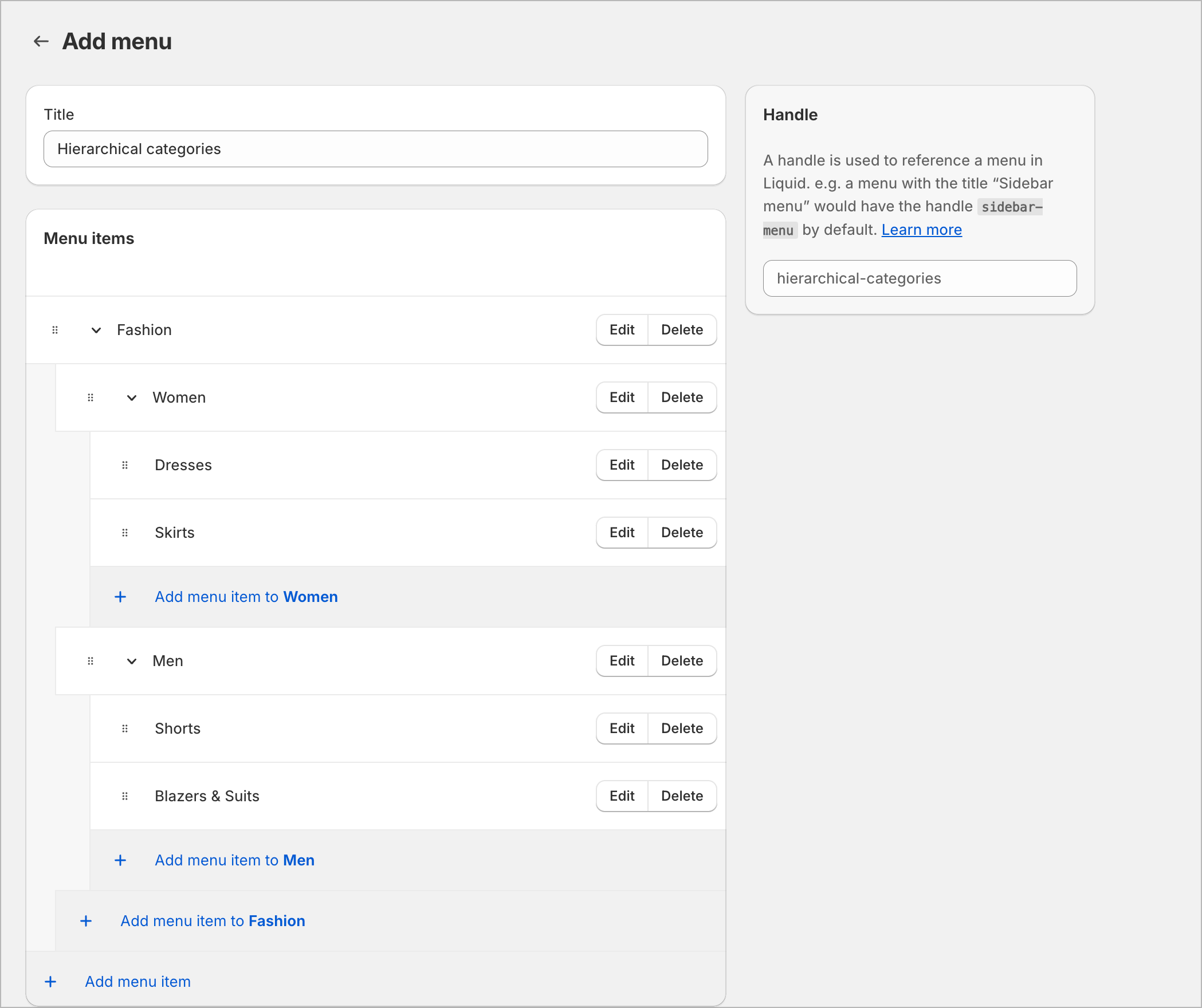
 You can nest menus by dragging one over another; this will create a sub-menu within one. This part is crucial, as it defines hierarchies for our sync scripts.
 ### Syncing search platform & Setting-up frontend
Once you've completed the above steps, it's time to push this data to our search platform.
Use our [CLI](/cli#sync) with the `sync` command. Ensure that `SHOPIFY_HIERARCHICAL_NAV_HANDLE` variable matches your navigation handle.
### Different platforms integration
If you want to create hierarchical categories using a different platform, ensure the following data structure is provided whenever you push products to your search solution:
```json theme={null}
hierarchicalCategories: {
lvl0: ['fashion']
lvl1: ['fashion > women', 'fashion > men']
lvl2: ['fashion > women > skirts', 'fashion > women > dresses', 'fashion > men > shorts', 'fashion > men > blazers-and-suits']
}
```
***
Once this is done and the environment variable can be read, you're all set!
We also recommend reading about [Search & Filtering](/features/filtering) to build proper browse experience.
### Syncing search platform & Setting-up frontend
Once you've completed the above steps, it's time to push this data to our search platform.
Use our [CLI](/cli#sync) with the `sync` command. Ensure that `SHOPIFY_HIERARCHICAL_NAV_HANDLE` variable matches your navigation handle.
### Different platforms integration
If you want to create hierarchical categories using a different platform, ensure the following data structure is provided whenever you push products to your search solution:
```json theme={null}
hierarchicalCategories: {
lvl0: ['fashion']
lvl1: ['fashion > women', 'fashion > men']
lvl2: ['fashion > women > skirts', 'fashion > women > dresses', 'fashion > men > shorts', 'fashion > men > blazers-and-suits']
}
```
***
Once this is done and the environment variable can be read, you're all set!
We also recommend reading about [Search & Filtering](/features/filtering) to build proper browse experience.