> ## Documentation Index
> Fetch the complete documentation index at: https://docs.commerce.blazity.com/llms.txt
> Use this file to discover all available pages before exploring further.
# Vector Search
> Get your search to next level with Vectors
This part of the documentation is exclusive to starters that use `meilisearch`
Enterprise Commerce leverages Meilisearch's hybrid search technology to provide a powerful and flexible Vector Search feature.
This allows users to go beyond keyword-based searches and find relevant results based on semantic meaning and conceptual understanding.
### How it works
Vector Search utilizes AI-powered embeddings to represent data points (e.g., product descriptions, customer reviews) as vectors in a high-dimensional space.
Similar data points have vectors that are close together, enabling the search engine to identify and retrieve conceptually relevant results even for complex or nuanced queries.
### Benefits
* **Improved Search Relevancy:** Vector Search significantly improves search result quality by understanding the meaning behind queries, not just the specific keywords.
* **Customizable:** Users can fine-tune the search experience by adjusting the "semantic ratio" to prioritize keyword-based or semantic search depending on their needs.
* **Future-proof:** The underlying technology is constantly evolving and improving, ensuring that Enterprise Commerce remains at the forefront of search capabilities.
### Setup
Enabling Meilisearch's Hybrid Search in your Enterprise Commerce project is a straightforward process:
1. **Navigate to your Meilisearch Cloud dashboard.**
2. **Select your project.**
3. **Enable the "AI-powered search" feature.**
 4. **Go to the "Indexes" tab and access your default index settings.**
5. **Open the "Embedders" tab.**
4. **Go to the "Indexes" tab and access your default index settings.**
5. **Open the "Embedders" tab.**
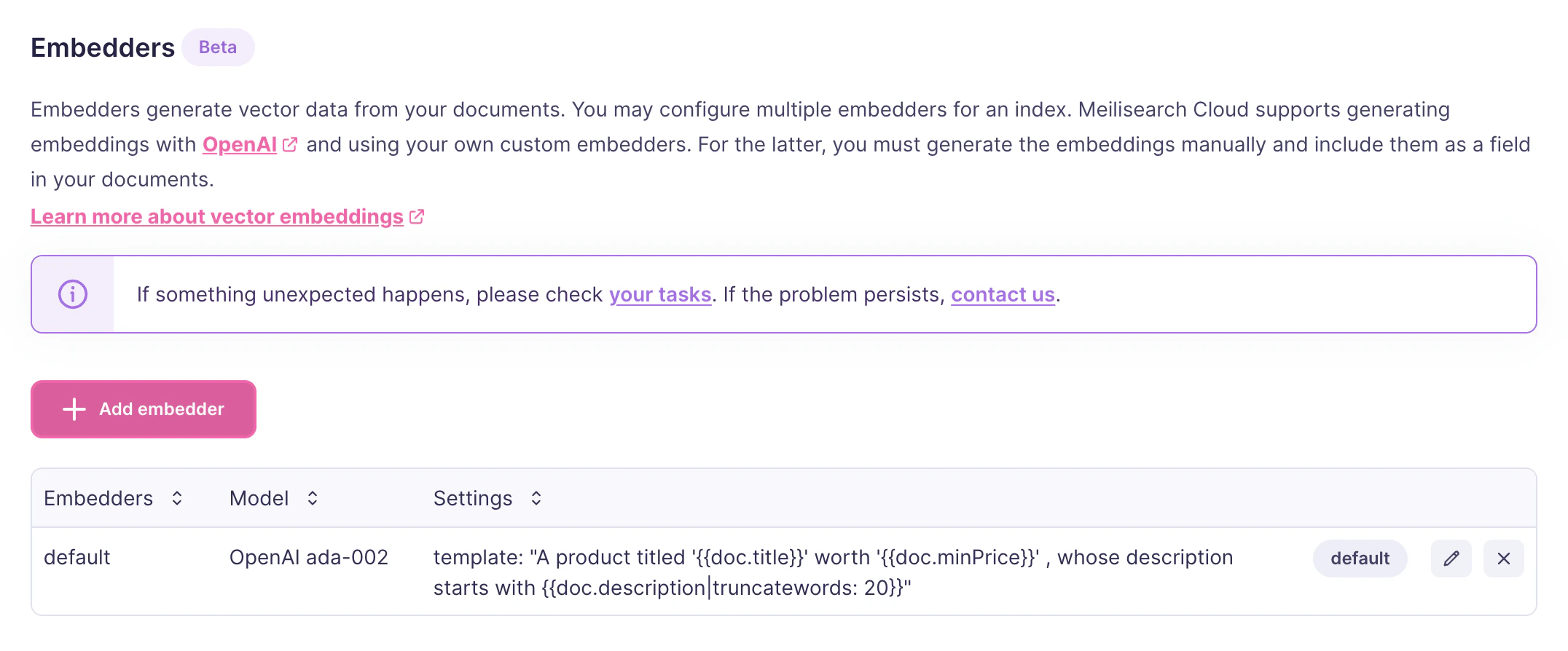 6. **Click "Create new embedder".**
7. **Name your embedder "default".**
8. **Provide your OpenAI API key.**
9. **Set the "Document template".** This template determines what information from each document is sent to the AI model for embedding generation.
```
A product titled '{{doc.title}}' worth '{{doc.minPrice}}' , whose description starts with {{doc.description|truncatewords: 20}}
```
**Note:** You can customize the document template to fit your specific needs and data structure.
6. **Click "Create new embedder".**
7. **Name your embedder "default".**
8. **Provide your OpenAI API key.**
9. **Set the "Document template".** This template determines what information from each document is sent to the AI model for embedding generation.
```
A product titled '{{doc.title}}' worth '{{doc.minPrice}}' , whose description starts with {{doc.description|truncatewords: 20}}
```
**Note:** You can customize the document template to fit your specific needs and data structure.